ServiceM8 how-to
Can a ServiceM8 QR label open a site's service reports?
Not on its own. Scanning a ServiceM8 asset label opens a page for that one asset with its form history and a Report Issue button, but no PDFs to open. To give a whole site's service reports to anyone who scans, put them in a shared Google Drive folder and print a QR code to that folder.
Last checked 2 Nov 2026 against the sources listed at the end of this page.
Not natively. A ServiceM8 asset label opens one asset's form history, with no report PDFs. A shared Google Drive folder behind your own QR label does open every report for the site.
Step by step
- In Google Drive, click New, then New folder, and name it after the site, for example Example Apartments Maintenance Records.
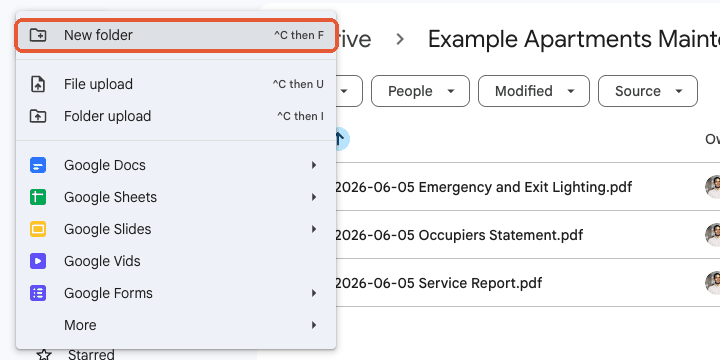
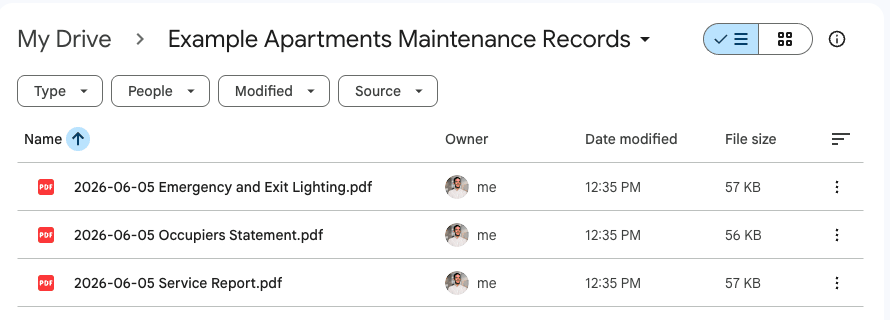
- Open the folder, click New, then File upload, and add the Service Report and form PDFs you downloaded from the ServiceM8 job diary.
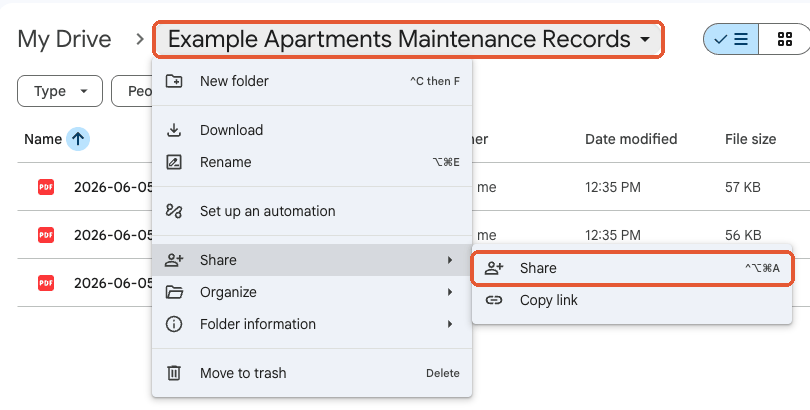
- Click the folder name at the top, then Share, then Share again.
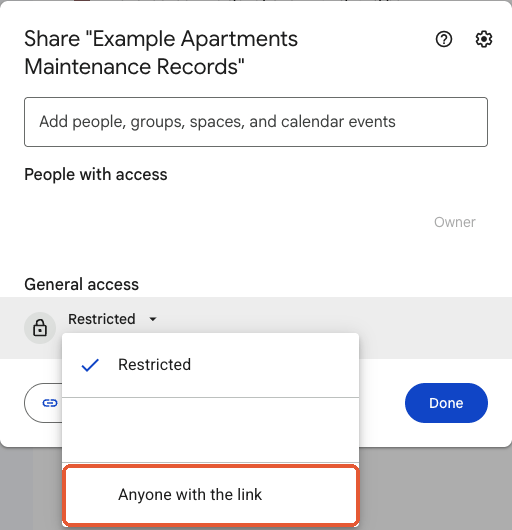
- Under General access, change Restricted to Anyone with the link, check the role reads Viewer, then click Copy link.
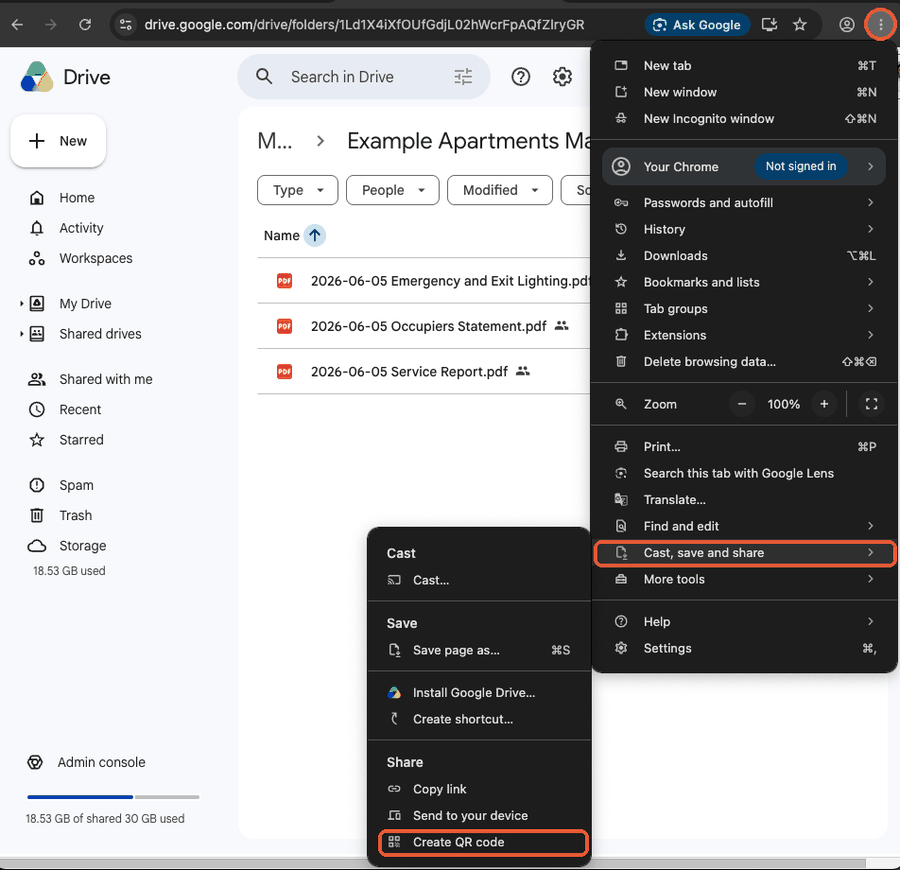
- Paste the link into a new Chrome tab, open Chrome's three dot menu, then Cast, save and share, then Create QR code.
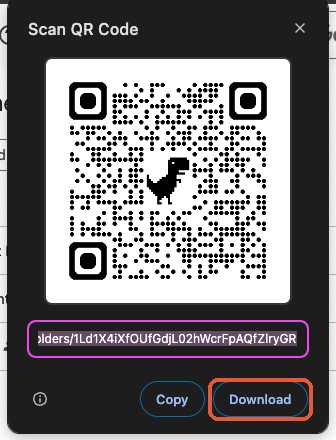
- Click Download to save the QR code, put it on a label with the site name, and stick it where the logbook sits.
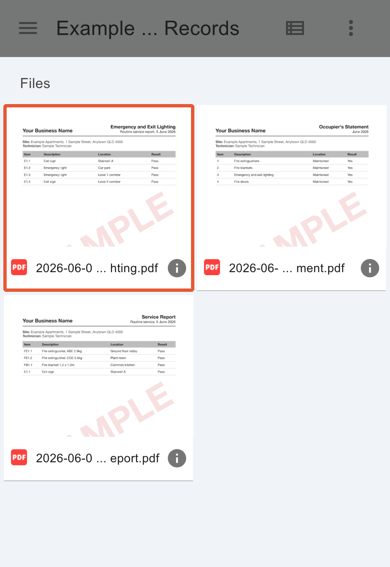
- Scan the label with your own phone before you leave. You should see the folder, signed out, with every report one tap away.
Gotchas
- Google Drive's site captures the right click menu, so Chrome's right click QR option does not appear on a Drive page. Use Chrome's three dot menu instead.
- Avoid free QR code websites that offer tracking or editing. Many route each scan through their own server and stop working when a trial ends, which breaks every label already on site. Chrome's code holds the folder link itself.
- Anyone with the link can download what is in the folder. Keep invoices, quotes and personal details out of it.
- Renaming the folder keeps the link working. Deleting it, or switching it back to Restricted, breaks every label that points at it.
- The folder is only as current as the last upload. Make adding the reports part of closing the job.
What the official help article misses: It says customers can scan a label to view service history, but not that the history is a list of form names and dates with no report PDFs, and it does not cover a site level label at all. Read ServiceM8's article.
What a ServiceM8 asset label actually shows
ServiceM8's Asset Management labels are built for the technician first. Scanned in the app, a label opens the asset so a tech can complete a form against it. Scanned with an ordinary phone camera, the same label opens a public page with your business name and phone number, the asset's name and type, a Report Issue button, and a history list.
That history list is the part that surprises people. It shows the names and dates of the forms completed against that one asset, such as "Routine Service Report, 5th June 2026". The entries are not links. There is no Service Report PDF to open, no form PDF, and nothing from the other assets on the same job. ServiceM8's own help centre describes the page as a way for customers to view service history and report issues, and that is exactly what it does. You can check it yourself by scanning the sample label printed in ServiceM8's label ordering article.
So if a property manager, an auditor or a fire officer asks "can I see the last service report?", the ServiceM8 label is not the answer. The reports exist, saved to each job's diary as PDFs, but they sit behind your ServiceM8 login.
Why a site level label works better
Most of the people who want records on site are not interested in one extinguisher. They want the building: every visit, with the report from each. One label per site, stuck where the paper logbook or the panel sits, answers that in a single scan, and it never needs replacing because the link behind it never changes.
A Google Drive folder is the simplest thing that can sit behind that label. Drive lets you share a folder so that anyone with the link can open it without signing in, and the Viewer role means they can open and download the reports but cannot change or delete anything. Chrome on a computer turns any page address into a QR code in a few clicks, with no QR website in the middle.
What to put in the folder, and what to leave out
Download the Service Report and the form PDFs from the job diary after each visit and upload them to that site's folder. Start every file name with the visit date, year first (2026-06-05 Service Report.pdf), so the folder lists visits in order on a phone.
Leave invoices, quotes and anything with pricing out. The folder is open to anyone who has the link, which in practice means anyone standing in front of the label. Only share the one site folder, never a parent folder that holds every client.
Where the free version runs out
The weak point is the upload. Someone has to download the reports and put them in the right folder after every visit, and on a business with hundreds of sites that adds up and gets missed. At that point the better shape is a page per site that fills itself from ServiceM8 through the API, so the label shows the latest reports the moment the job is completed.
Sources
- Customers can scan a ServiceM8 asset label to view service history on the asset and report issues directly to the business. ServiceM8 Help Center, checked 2 Nov 2026.
- When a ServiceM8 Form is completed, ServiceM8 converts it to a PDF and saves it to the Job Diary, where it can be emailed to the customer or kept with the job record. ServiceM8 Help Center, checked 2 Nov 2026.
- With General access set to Anyone with the link, anyone on the internet who has the link can open a Google Drive file or folder without signing in, and the Viewer role lets people view the folder and open all files within it. Google Drive Help, checked 2 Nov 2026.
- Chrome on a computer can create a QR code for the current page from the More menu, under Cast, save and share, then Create QR code, with an option to download it. Google Chrome Help, checked 2 Nov 2026.