ServiceM8 how-to
How do you put a building's fire maintenance records behind a QR code?
Keep the building's routine service reports in one Google Drive folder shared as view only, make a QR code of the folder link in Chrome, and stick the label beside the fire indicator panel or logbook. Anyone who scans sees every report on their phone, without a login, an app or a cabinet key.
Last checked 2 Nov 2026 against the sources listed at the end of this page.
Not with a ServiceM8 asset label, which shows one item's form history without reports. A shared Google Drive folder behind a site QR label opens every report for the building.
Step by step
- Create one Google Drive folder for the building and name it after the property, not the job.
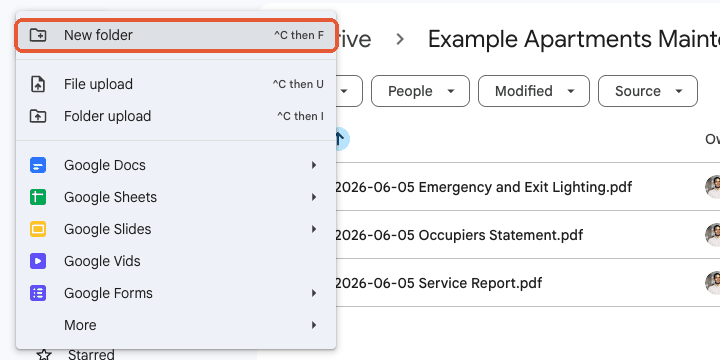
- Upload the latest service report and equipment reports, each named from the visit date, year first.
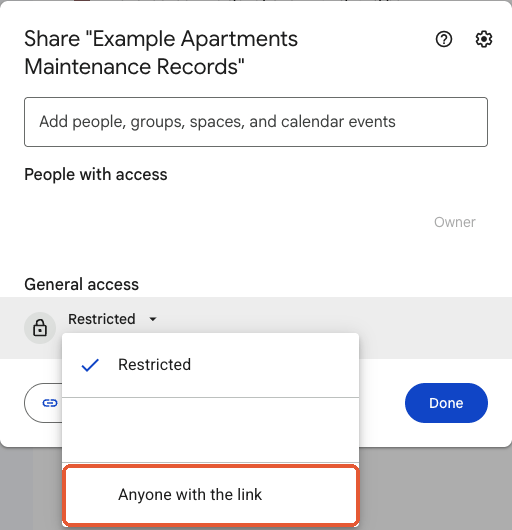
- Share the folder: under General access pick Anyone with the link, leave the role on Viewer, and copy the link.
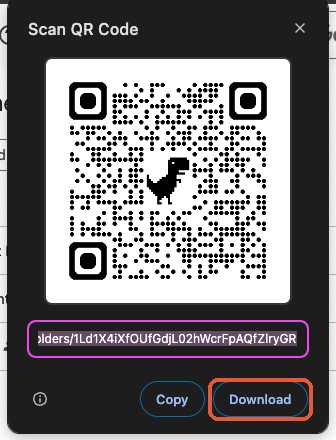
- Open the link in Chrome on a computer and make a QR code from the three dot menu (Cast, save and share, Create QR code), then Download it.
- Print the code on a durable label with the building name and a line such as Scan for fire maintenance records, and fix it beside the panel or logbook.
- Test it signed out on a phone. A report should open in one tap from the folder.
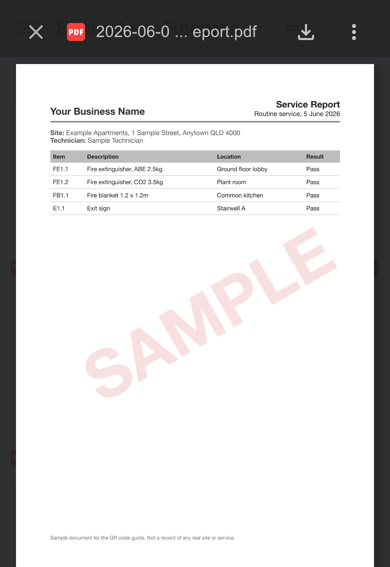
- After each routine service, add that visit's reports to the folder. The label never changes.
Gotchas
- A label on a panel door is readable by anyone in the building. Share only the one building's folder, view only, and keep pricing and personal details out of it.
- Do not use a QR website's free tracked code. When its trial ends the code can stop redirecting, and every label already fixed in a building goes dead with it.
- If the folder's owner leaves the business and their Google account is deleted, the folder goes with it. Create it in a shared business account, not a technician's personal one.
- Switching the folder back to Restricted, or deleting it, breaks the label. Renaming it does not.
What the official help article misses: Google's sharing article explains Anyone with the link and Viewer, but not that a QR code of that link turns a folder into an on site record point, or what to keep out of a folder whose link is printed on a wall. Read ServiceM8's article.
Who scans it, and what they are looking for
The label is for whoever needs the records while standing in the building: a building manager answering a tenant, a body corporate committee member, an insurer's assessor, or a fire officer on an inspection. None of them want to ring the contractor and wait for an email. They want to see that the extinguishers, hose reels, exit lights and doors were serviced, and when.
Under AS 1851 most of that equipment is serviced on a six monthly or yearly cycle, so a typical building builds up two or three visits a year, each with a service report and a handful of equipment reports. That is a small, steady stream of PDFs, which is exactly what a shared folder handles well.
Who should own the folder
This is the decision worth making before the first label goes up. If the fire contractor owns the folder, the records stay with the contractor when the building changes provider, and the label on the wall goes stale. If the building manager or body corporate owns it and gives the contractor edit access, the folder and the label outlive any one contractor.
Either way works. Contractors who set it up for their clients as a value add usually create it in their own Drive and hand ownership over later if the client asks.
What goes in, and how to lay it out
One folder per building, with a subfolder per year once it fills up. Inside, the routine service reports, the equipment reports for each system, and in Queensland a copy of the signed Annual Occupier's Statement for that year. Name every file from the visit date, year first, so the newest visit is easy to find on a small screen.
Keep quotes, invoices and defect pricing out, along with tenant names and phone numbers. Anyone holding the link can open the folder, and the link is printed on a wall.
A convenient copy, not the official record
The folder is a copy for convenience. Keep the records your state's rules ask for in the form and place they ask for, and keep lodging what has to be lodged, such as Queensland's Annual Occupier's Statement. The QR label simply makes the latest reports quick to show to the people who ask on site.
Sources
- Queensland's Annual Occupier's Statement confirms the building's fire safety installations have been maintained in accordance with a relevant standard or recommendation, under Queensland Development Code MP 6.1. Business Queensland, checked 2 Nov 2026.
- AS 1851:2012 sets a six monthly routine service for portable fire extinguishers and a six monthly visual check for fire hose reels, with yearly tests on top. Complete Pumps and Fire, checked 2 Nov 2026.
- With General access set to Anyone with the link, anyone who has the link can open a Google Drive folder without signing in, and Viewers can open all files in it but cannot edit or reshare. Google Drive Help, checked 2 Nov 2026.
- Chrome on a computer creates a QR code for the current page from the More menu, under Cast, save and share, then Create QR code, and the code can be downloaded. Google Chrome Help, checked 2 Nov 2026.